
Purchase Orders
Easily create, manage, and track purchase orders with a structured workflow.
Purchase Order Process
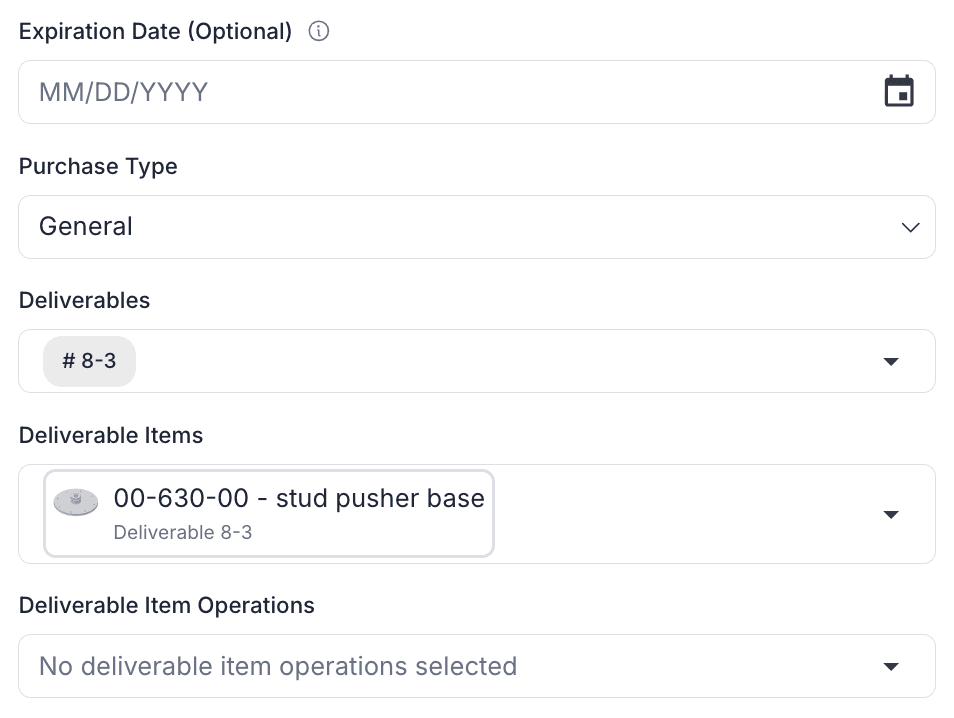
Creating a Purchase Order
A purchase order is initiated directly from an operation, ensuring that procurement remains tied to manufacturing workflows. This eliminates the need for manual tracking and helps maintain clear visibility over purchased materials and services.
Direct PO Creation
Initiate a PO from an operation, linking purchases to specific work tasks.
Auto-Populated Fields
Automatically include deliverables and items, reducing manual entry.
Vendor Selection
Assign a supplier to ensure correct sourcing of materials.
Due Date & Scheduling
Set expected delivery timelines to align with production schedules.
Configure PO Details
Once the purchase order is created, users can fine-tune details to reflect the specific needs of the procurement. This step allows for cost adjustments, verification, and ensures that all essential information is captured before finalization.
Line Items
Adjust materials, parts, and service requirements to match production needs.
Cost Breakdown
Add tax, shipping fees, and surcharges for a comprehensive financial overview.
Preview & Review
Verify PO details before submission to ensure accuracy.
Approval & Submission
Finalize the PO to begin the procurement process.
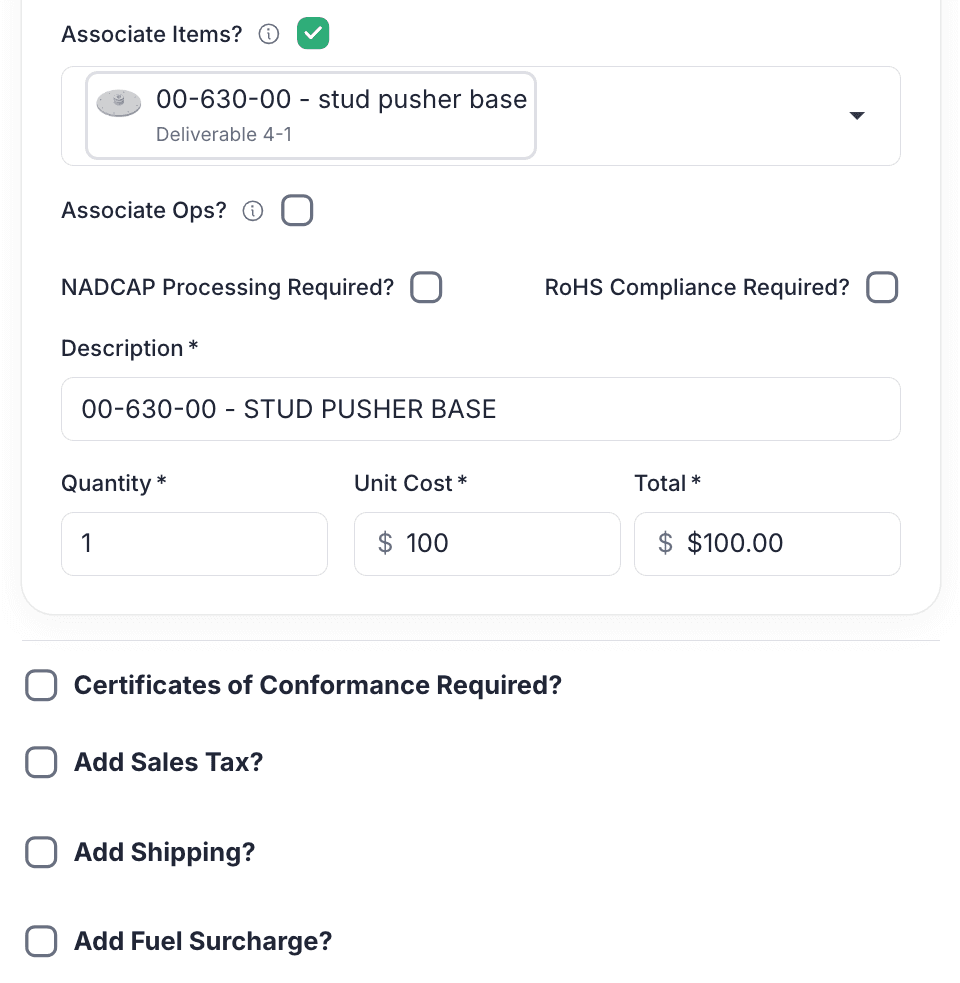
Purchase Order Creation
Enter and review PO details before submission.
Creating purchase order for Order #329, Deliverable #1
Purchase Order Information
329-1-G-1 REV 0
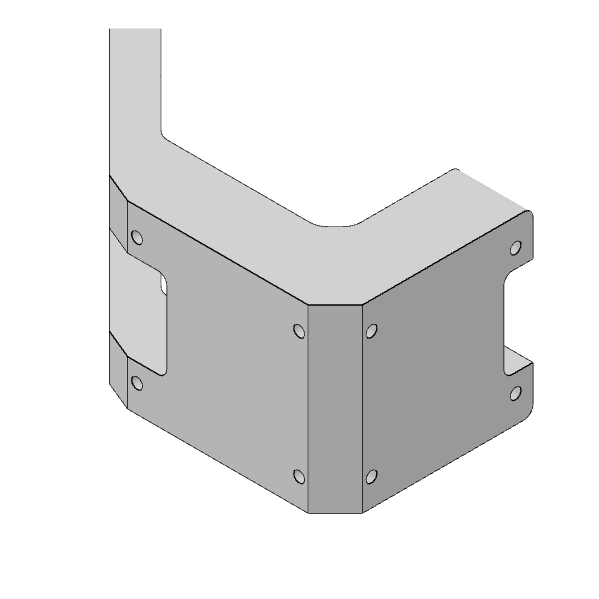
ASM-21-R-...
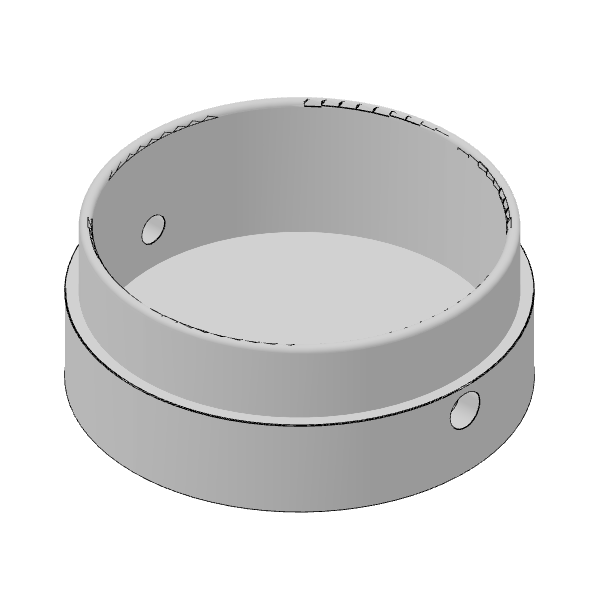
BASE
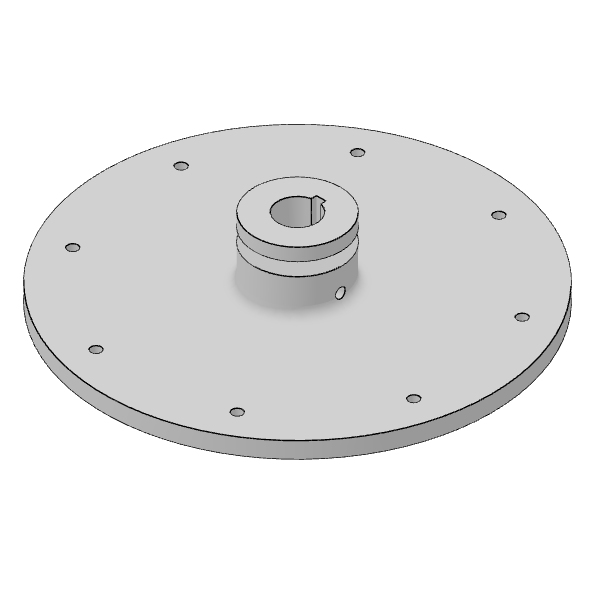
00-630-00
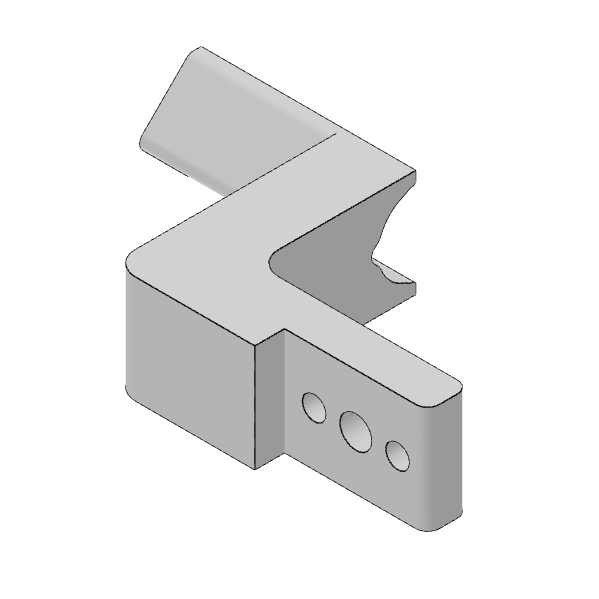
00-630-01
Line Items
No line items have been added
Add Sales Tax?
$
Add Shipping?
$
Add Fuel Surcharge?
$
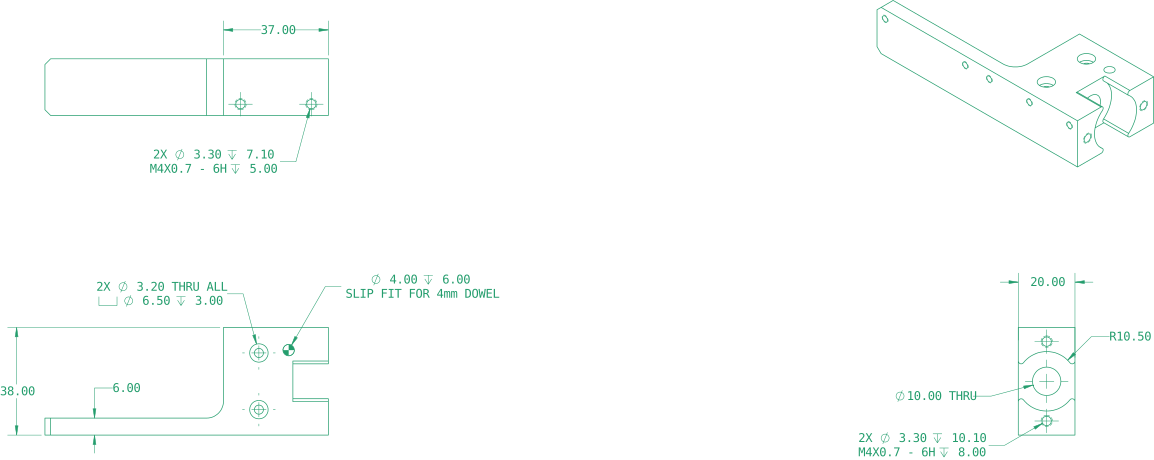
Redact Drawings Before They Go Out
When sending a PO to a vendor, the attached engineering drawing may carry pricing, competing supplier names, or internal references meant for the shop floor. Strip them before the drawing leaves.
AI-Assisted PDF Redaction
Point the Assistant at an engineering drawing and it scans for content that should not reach the vendor. It suggests redaction regions across six categories. You accept or reject each suggestion, draw any additional boxes, and applying the redaction writes permanent black rectangles into the PDF.
Pricing and cost data
Unit prices, totals, and discount terms visible on the drawing that the vendor should not see.
Supplier/vendor info
Competing vendor names and part numbers that reveal your supply chain.
Internal part/job numbers
Job numbers, cost centers, and routing IDs meant for internal use.
Permanent
The original text is removed from the file. It is not a layer that can be peeled off.
BR4471-Rev-C.pdf
Part No.
Rev
Unit Price
Vendor P/N
Material
Job No.