
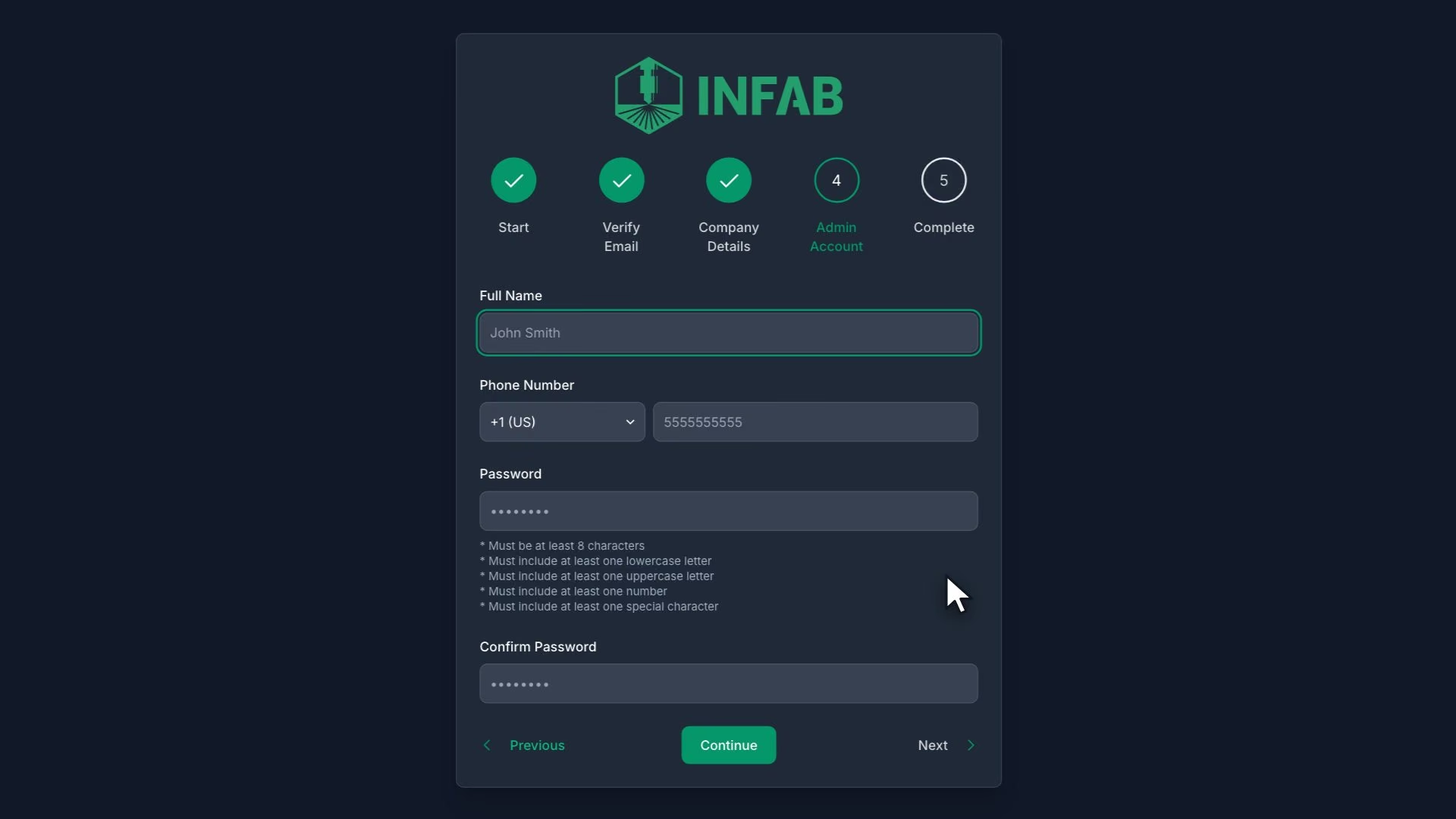
Steps
Enter your access code
Enter your work email, or choose Google
Type the 6-digit code from your inbox
It expires after 10 minutes.
Fill in Company Name and Company Legal Name
Pick a Unique ID: exactly 6 characters, lowercase, no spaces
WarningYour customers type the Unique ID to sign in to your customer portal. Later it shows as read-only on the Organization page, so choose it with care.
Add your Website if you want
It is optional.
Create the admin login: full name, phone, and a password of 8 to 64 characters with an uppercase letter, a lowercase letter, a number and a symbol
Google sign-ups skip this step.
Finish on the Complete page
Note
Accounts are US only.
Note
You do not pick a plan here. Every shop starts on a 14-day Starter trial with room for 5 users.
Tip
Your Shorthand is built from your company name's initials. You can change it later in Admin, Organization.
Note
Your account comes with 3 starter process templates, shop task columns (Backlog, To Do, In Progress, Done) and 15 protected document folders. It has no machines, addresses, customers, vendors or operation templates yet. The next lessons add those.
What good looks like
- You reach the Complete page.
- You know your Unique ID.
- You can sign in at console.infab.app.