Lesson 6.2

Accept the quote and create the order

An order with its deliverable and operations, created straight from the accepted quote.

5 minQuote > Accept6 steps
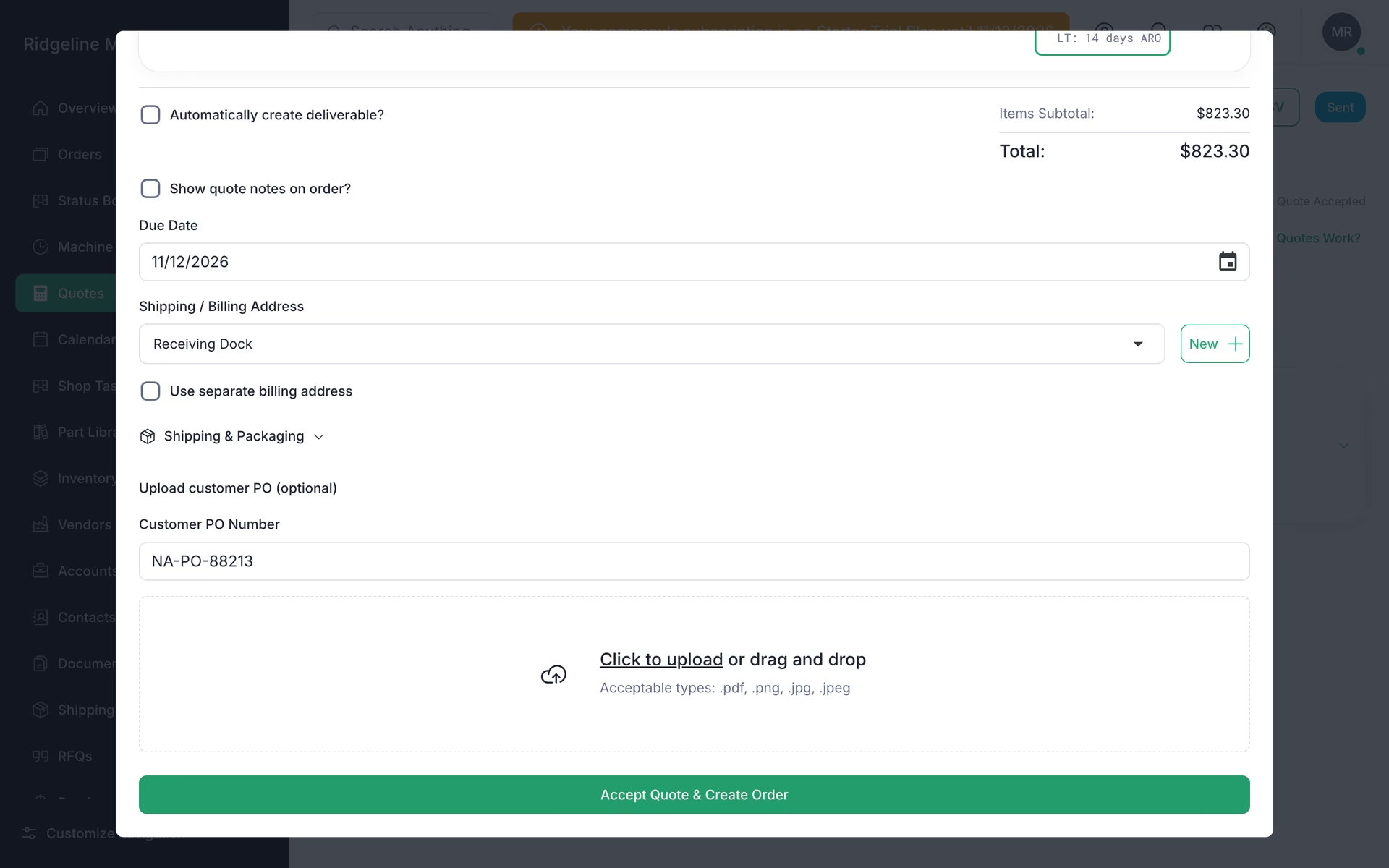
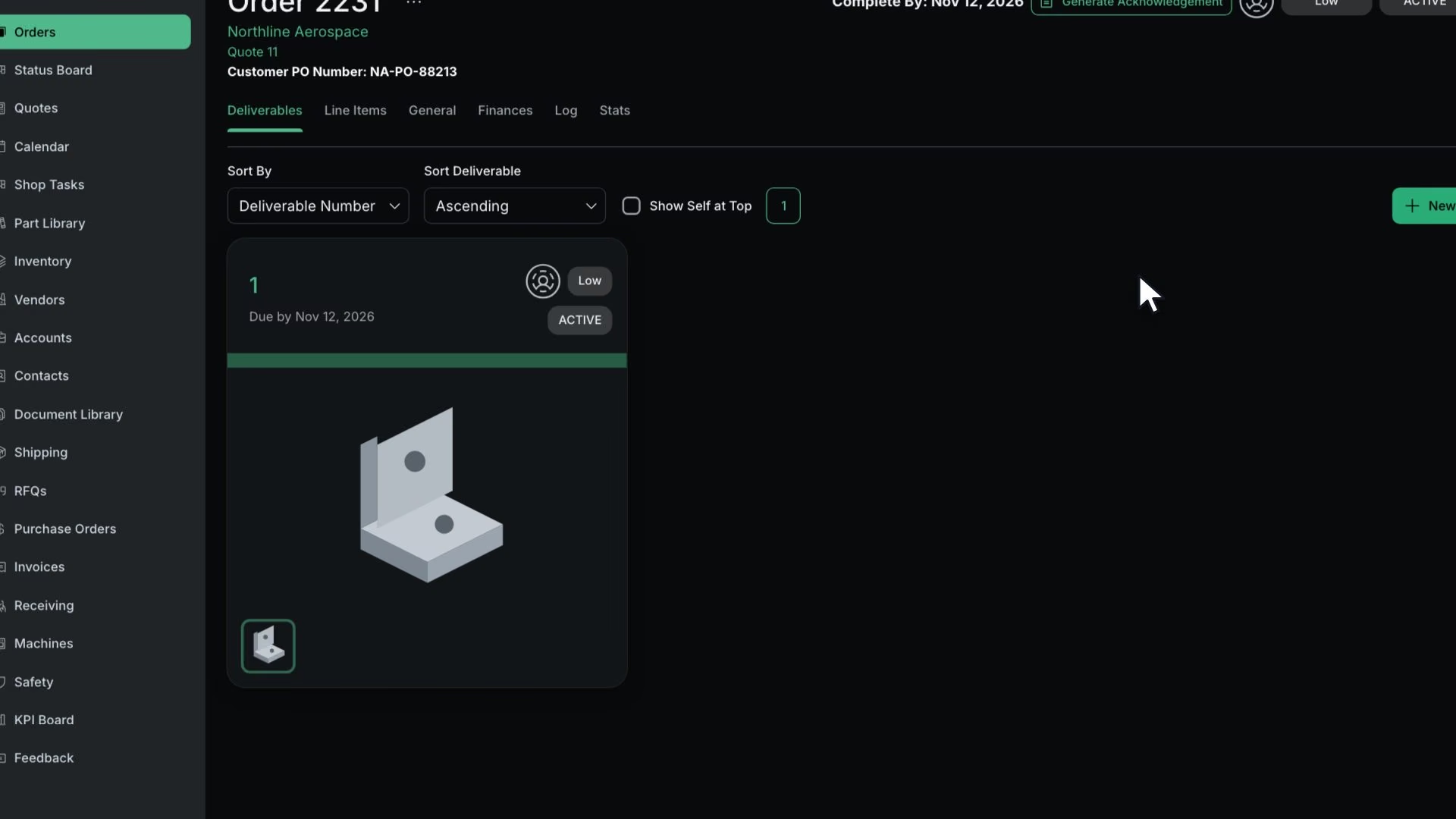
In the Accept dialog, a customer PO is typed in, Accept Quote & Create Order is clicked, and the order header for Order 2231 appears.

Before you start

Steps

  1. On the finalized quote, click Mark As Accepted

    The Accept Quote dialog opens.

  2. Pick the items and quantities, or click Select All

  3. Enter the Customer PO Number

    The Accept Quote dialog for Quote 11 with the bracket item selected and the Customer PO Number filled in.
  4. Confirm Due Date, Shipping / Billing Address and Shipping & Packaging

  5. Turn on Automatically create deliverable?

    It is off by default. With it on, the order gets its deliverable and operations right away.

  6. Click Accept Quote & Create Order

    You land on the order.

Note

With AS9100 contract review turned on, the contract review runs first.

What good looks like

  • The order exists with a deliverable and its operations.

Next: assign the work

Every operation on the order gets a machine, an operator and a place on the schedule.

No contracts. Cancel anytime.

Open lesson 6.3

All Rights Reserved.