
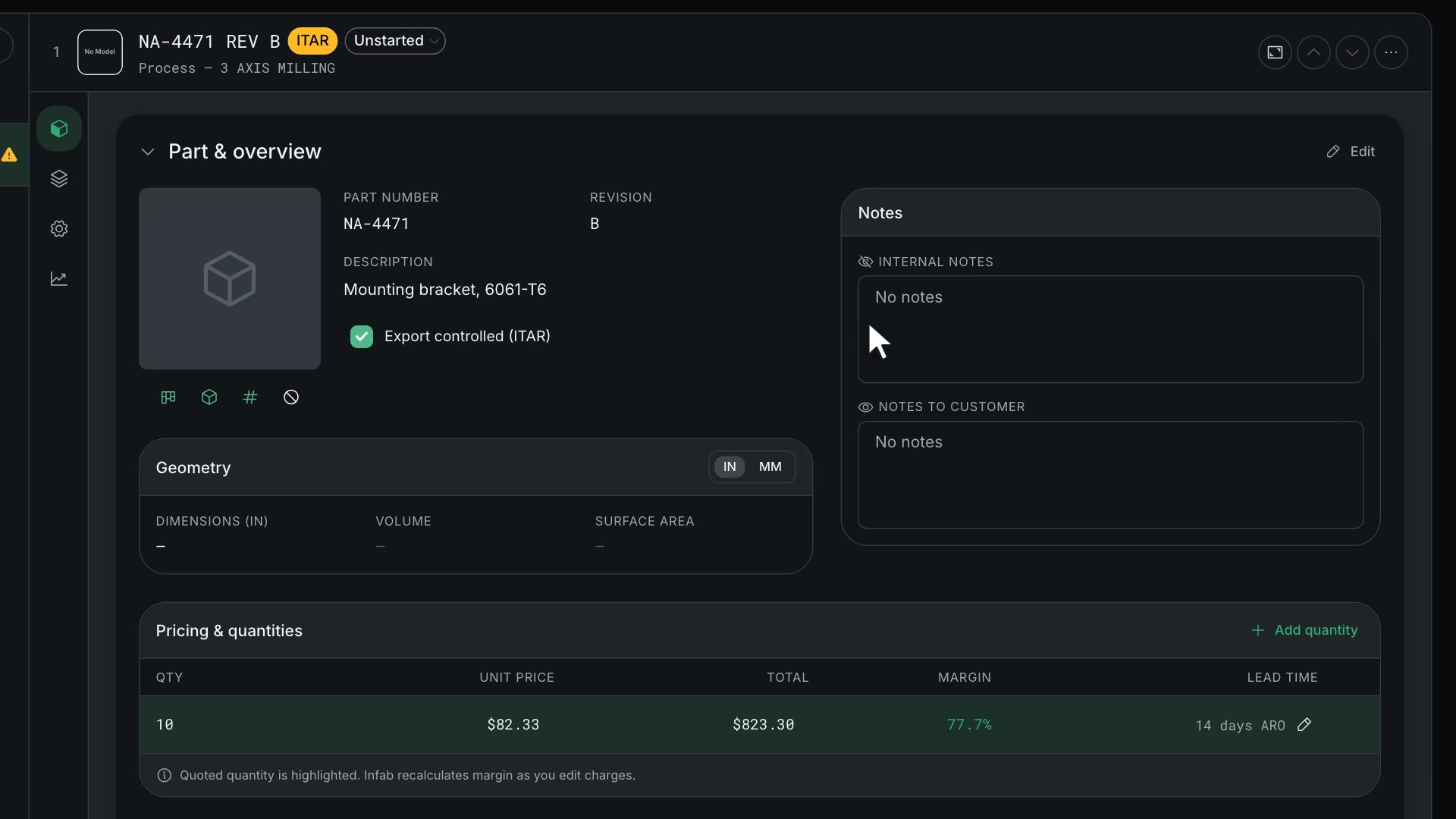
Before you start
Steps
In Quotes, click New
The New Quote drawer opens.
Pick Account and Contact, and set Customer Reference
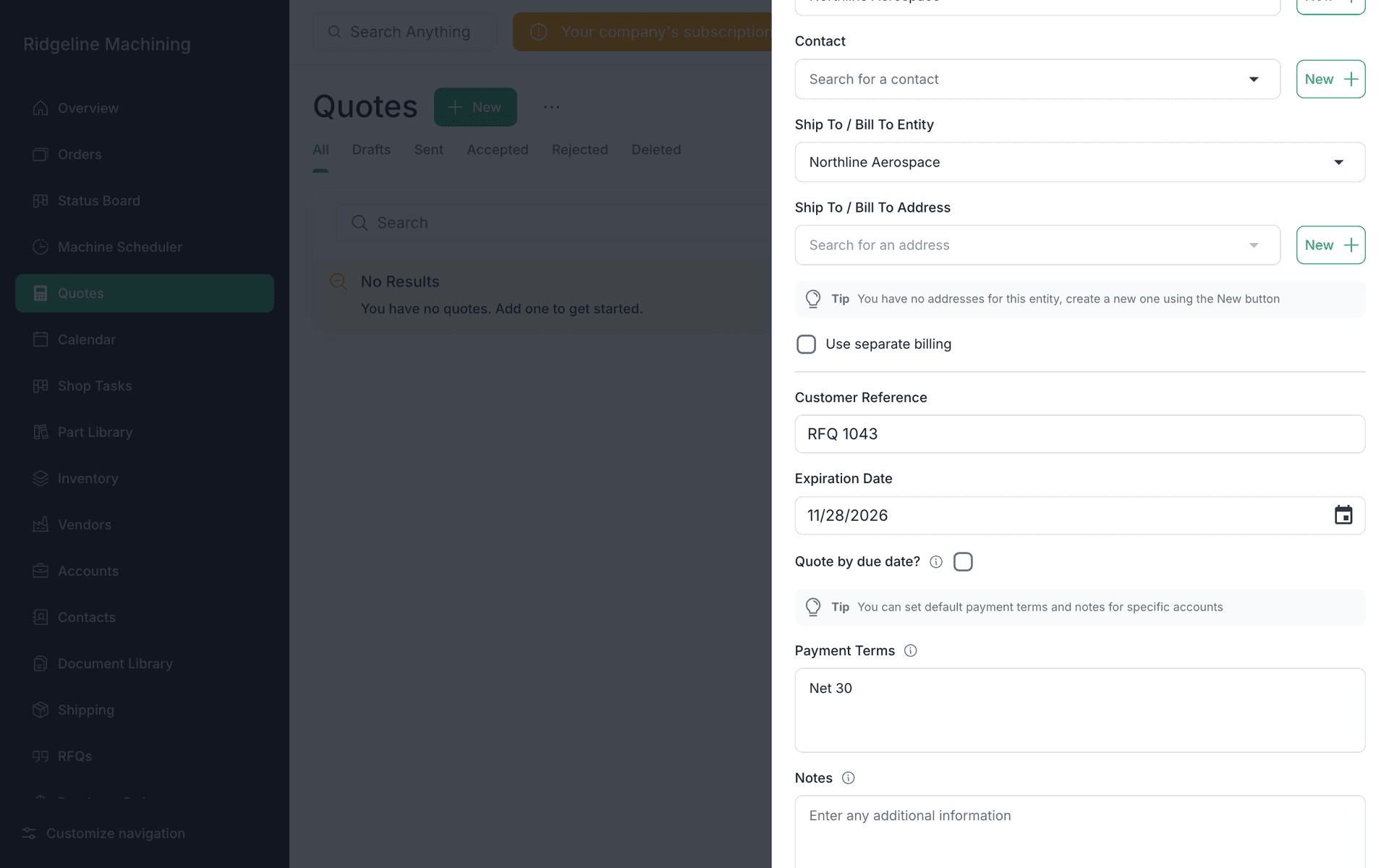
Check Expiration Date, Payment Terms and Notes, then click Submit
No toast; the quote page opens.
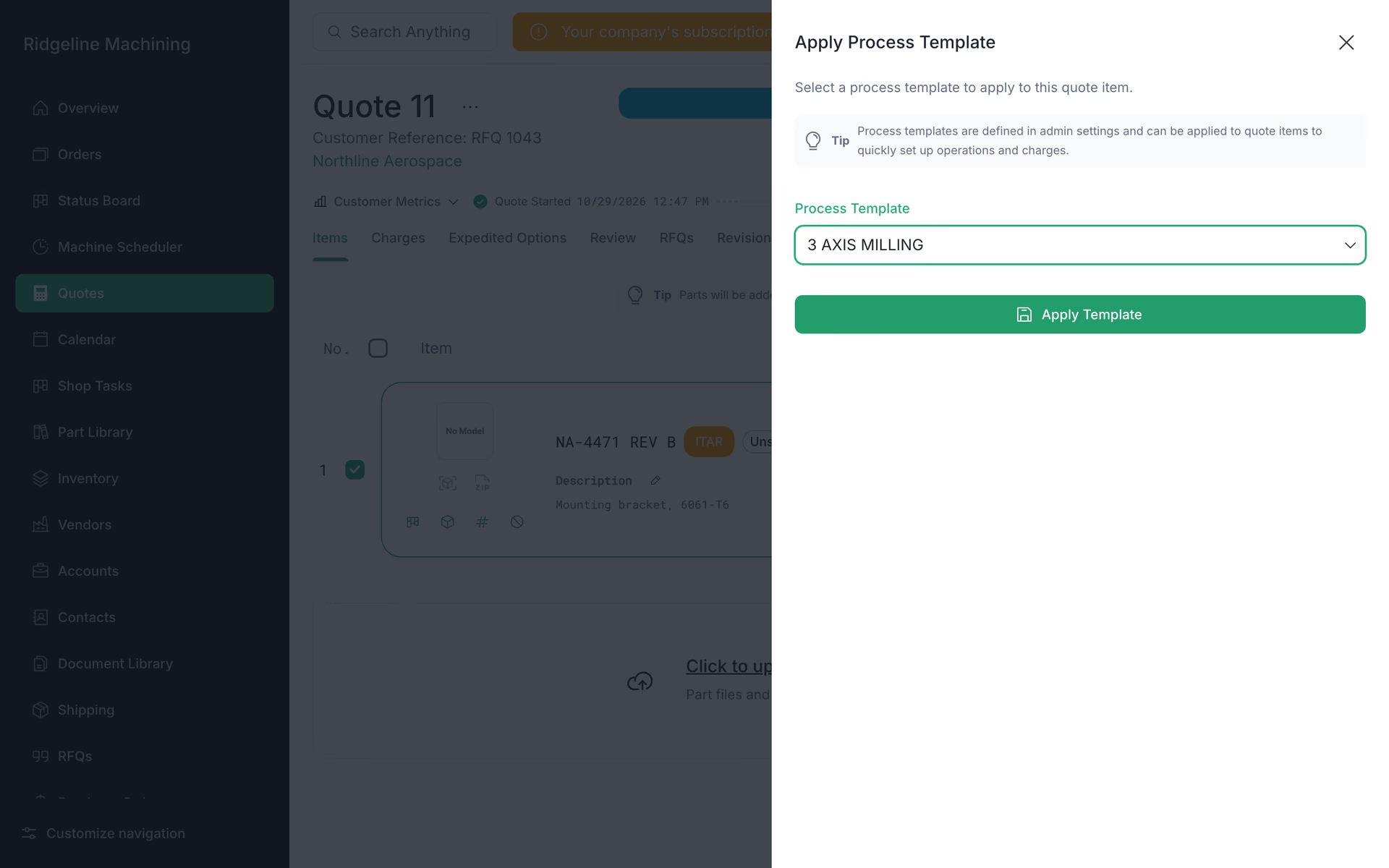
Click Add blank items, fill in the part row and click Create 1 Items, then open the item menu and click Set Process
In Apply Process Template, pick a Process Template and click Apply Template. Its operations and charges fill in.
From the item menu, use Set Material to add material and Set Quantities to set the quantity tiers
Check the charges, lead-time and review tabs
Assign machines to operations to use their rates
On the Review tab, click Finalize Quote
Warning
Creating a quote needs an account, an expiration date, access to financials and an active subscription.
Tip
The How Do Quotes Work? dialog on the quote page lists everything quoting needs first.
Note
Margin colors follow your High and Low thresholds.
What good looks like
- The quote is finalized.
- Every operation has a charge.
- The margin chip is not red.