
Lesson 5.3

Set up materials and stock locations

Add the materials you buy with prices, the places you keep stock, and your repeat parts.

7 minInventory > Material Library and Locations6 steps
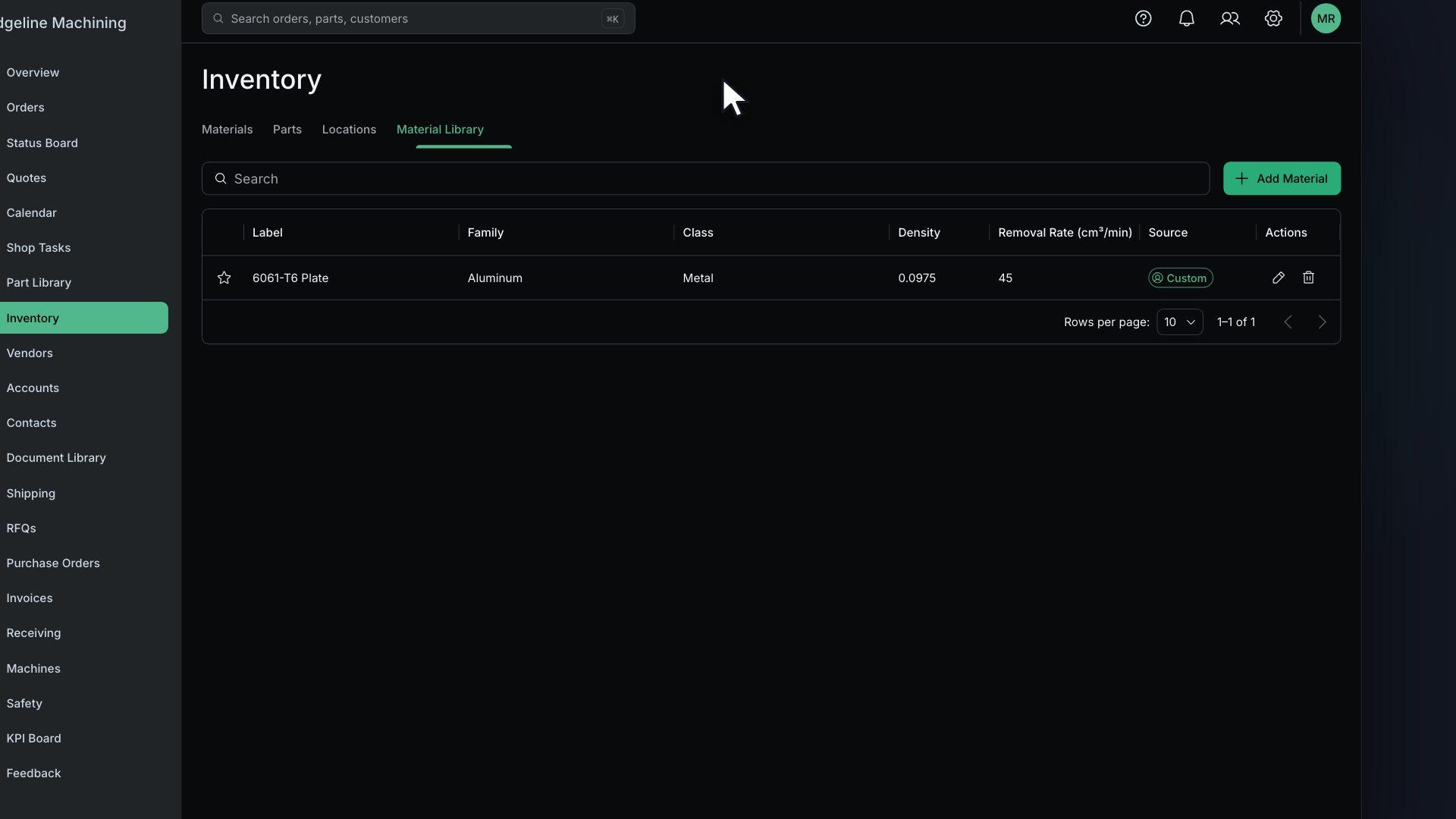
In the Add Custom Material drawer, Label "6061-T6 Plate", Class Metal, Family Aluminum, Density and Removal Rate are entered, and Submit shows the toast "Material created successfully" and the new row.

Before you start

Steps

  1. Search the global library for your alloys

  2. For anything missing, click Add Material in Material Library and fill in Label, Class, Family, Density and Removal Rate (cm³/min)

    You will see "Material created successfully".
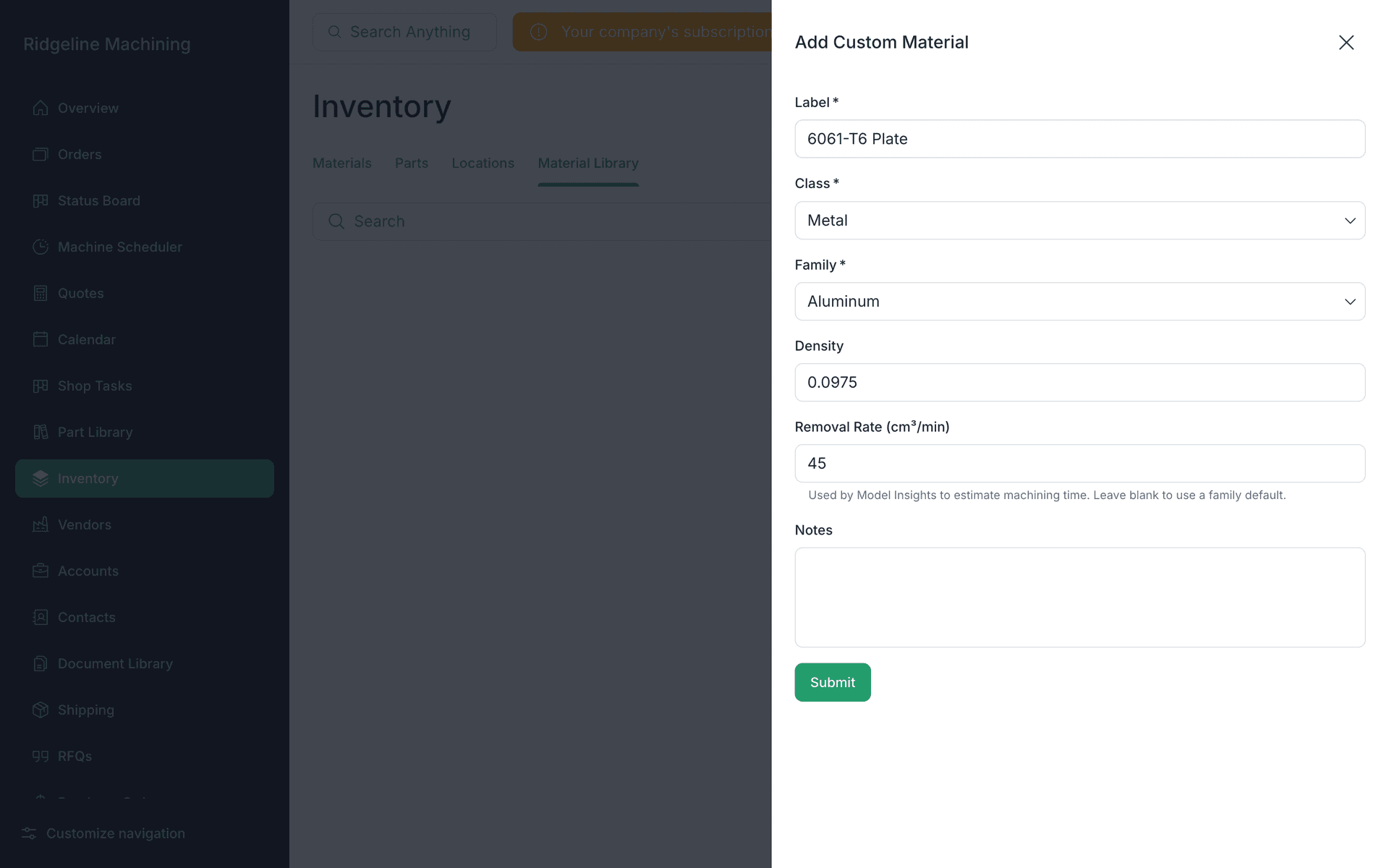
    The Add Custom Material drawer for 6061-T6 Plate: Class Metal, Family Aluminum, Density 0.0975 and Removal Rate 45.
  3. Add prices in Material Pricing

    Warning

    If material pricing is missing, quotes show a warning and the material line costs $0.

  4. In Locations, click Add Location and add locations with Location Name and Location Type (both required), plus Aisle, Rack, Shelf, Bin and Parent Location

    Click Create Location.
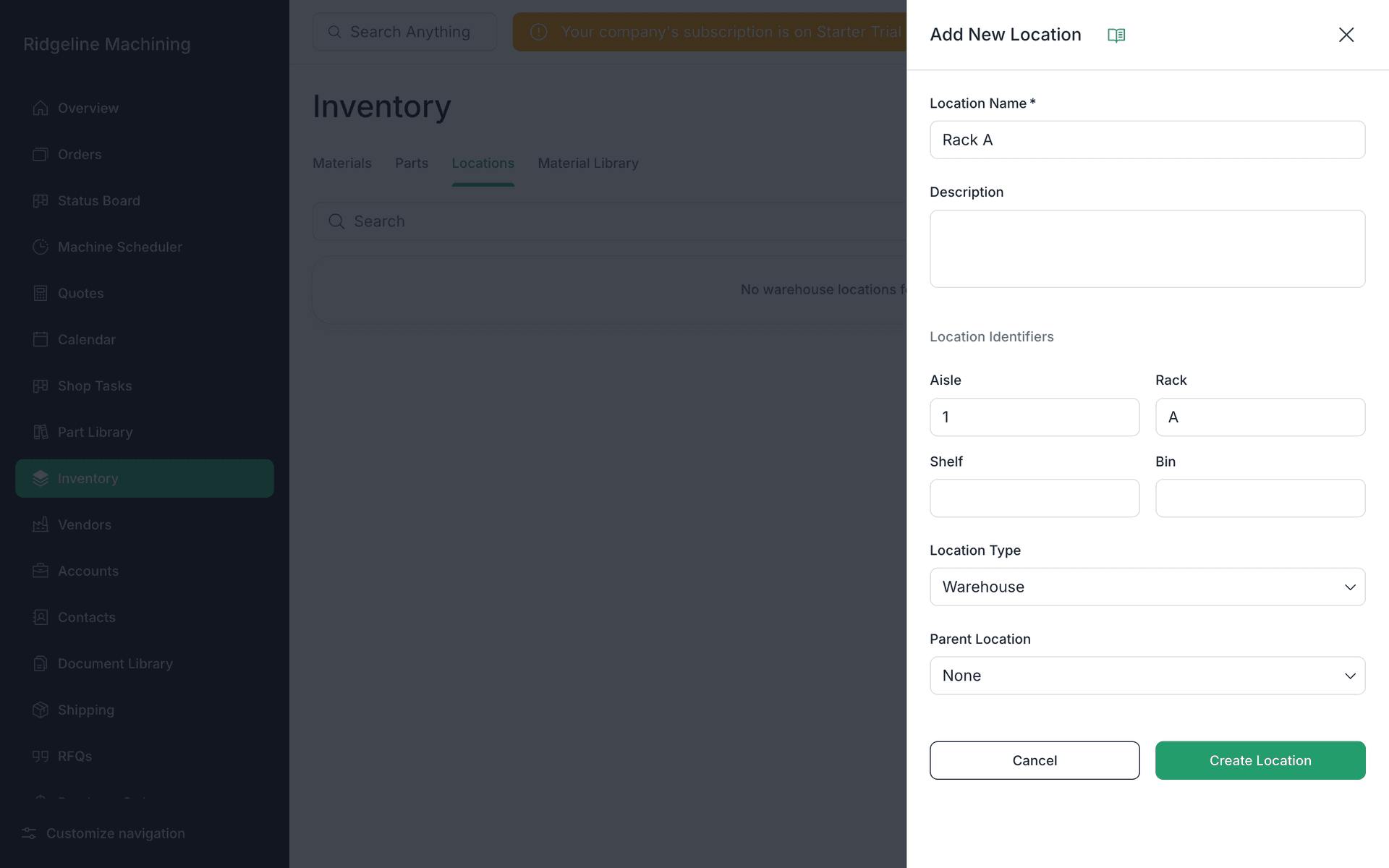
    The Add New Location drawer for Rack A with Aisle 1, Rack A and Location Type Warehouse.
  5. Record your stock on hand

  6. Add repeat parts to the Part Library

Note

There is no hardware catalog.

What good looks like

  • The materials you buy most often have prices.
  • Every rack has a location.

Next: build your first quote

A finalized quote with a process applied, material priced and a charge on every operation.

No contracts. Cancel anytime.

Open lesson 6.1

All Rights Reserved.