Lesson 5.1

Add your customers

Add customer accounts with compliance, contacts, locations, tax and quote defaults.

6 minAccounts6 steps
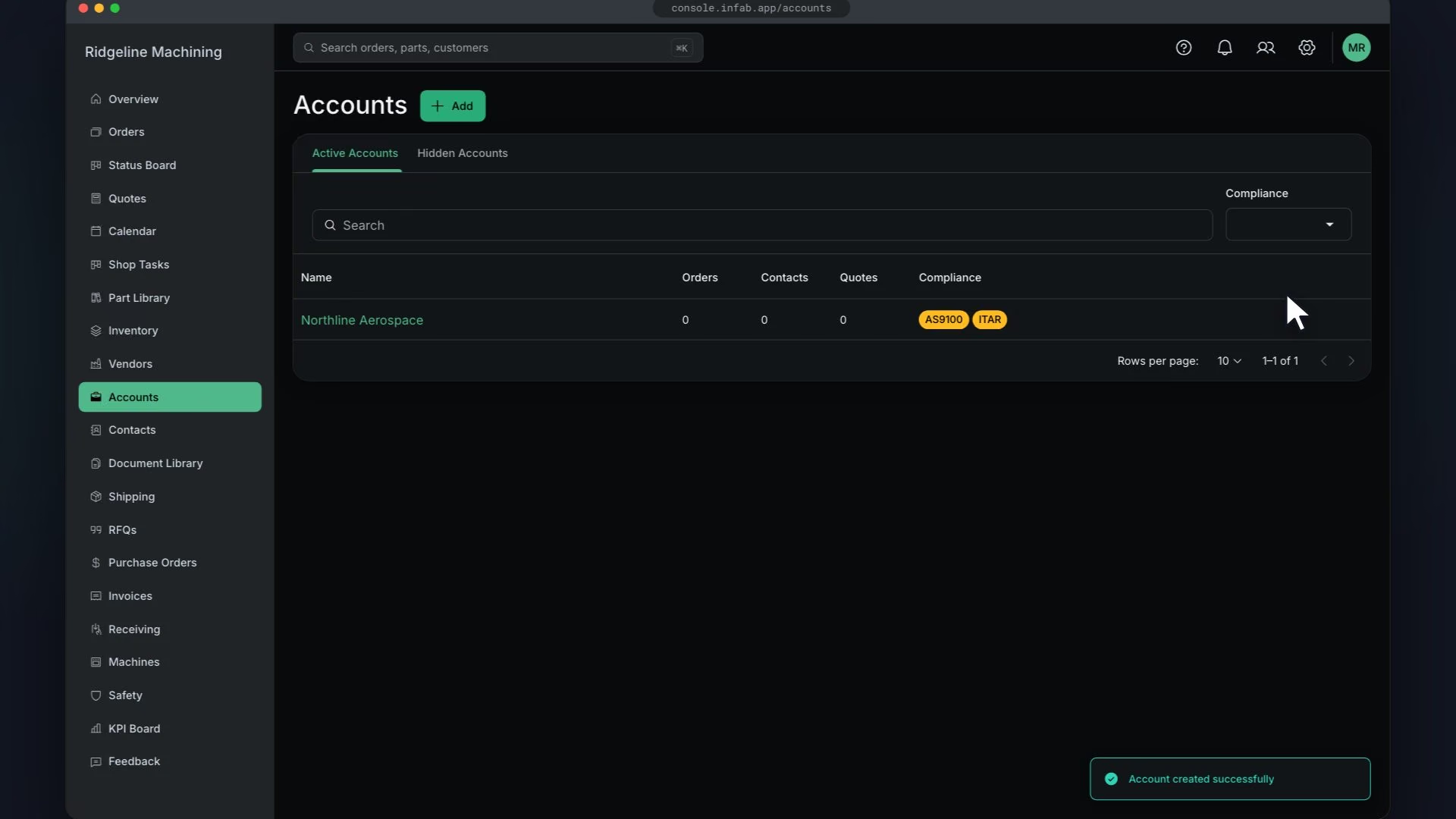
In New Account, Name "Northline Aerospace", Legal Name, Email and the AS9100 and ITAR Compliance chips are entered, and Save shows the toast "Account created successfully".

Before you start

Steps

  1. In Accounts, click Add

    The New Account drawer opens.

  2. Enter Name (required), Legal Name and Email

  3. Pick Compliance: ITAR, ISO 9001, AS9100, NADCAP or DFARS
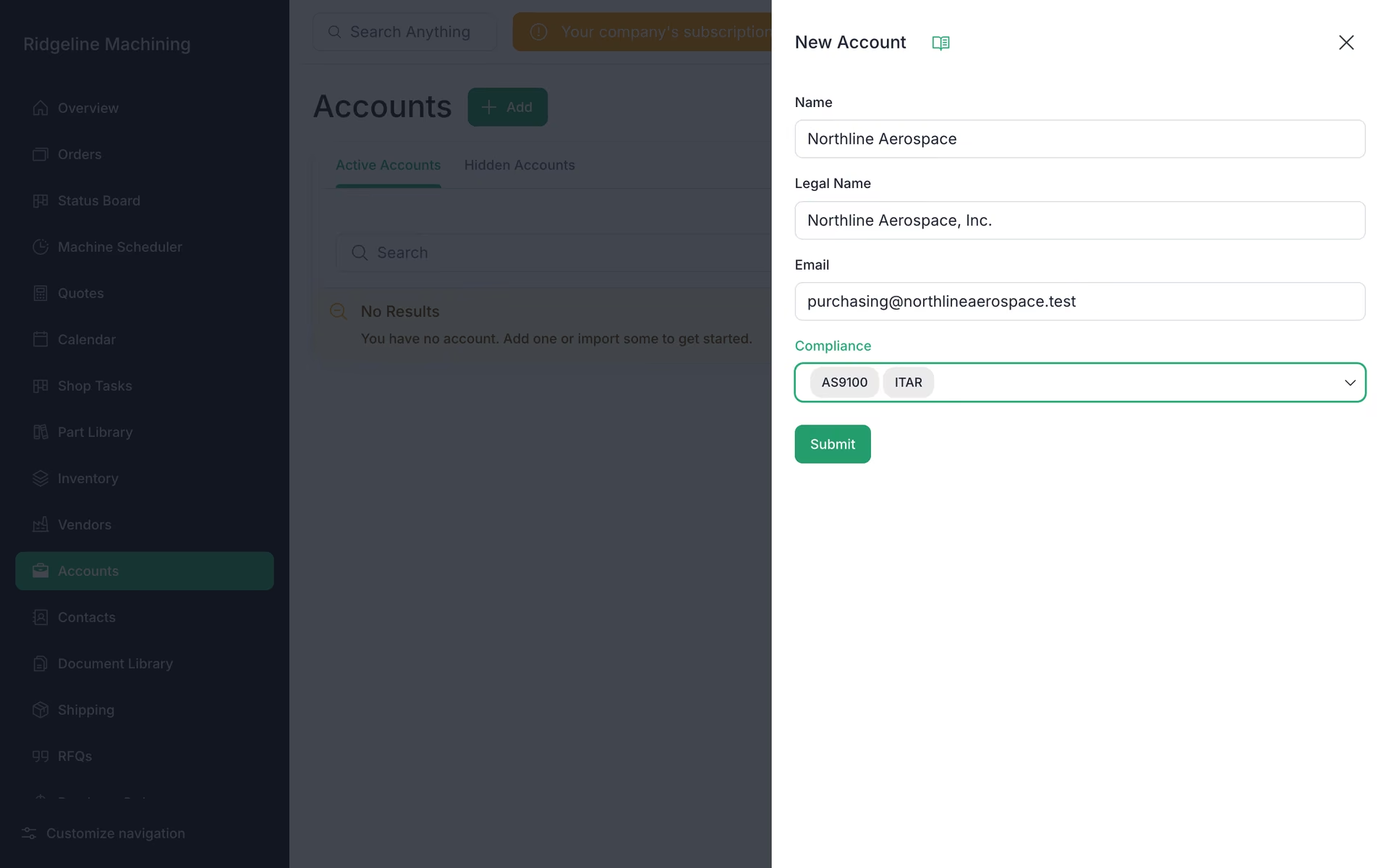
    The New Account drawer for Northline Aerospace with AS9100 and ITAR picked under Compliance.
  4. Click Submit

    You will see "Account created successfully".

  5. Add contacts and locations on the account

  6. In the account's Settings, set taxable, Tax Rate %, quote defaults (payment terms, lead time, notes) and invoice defaults
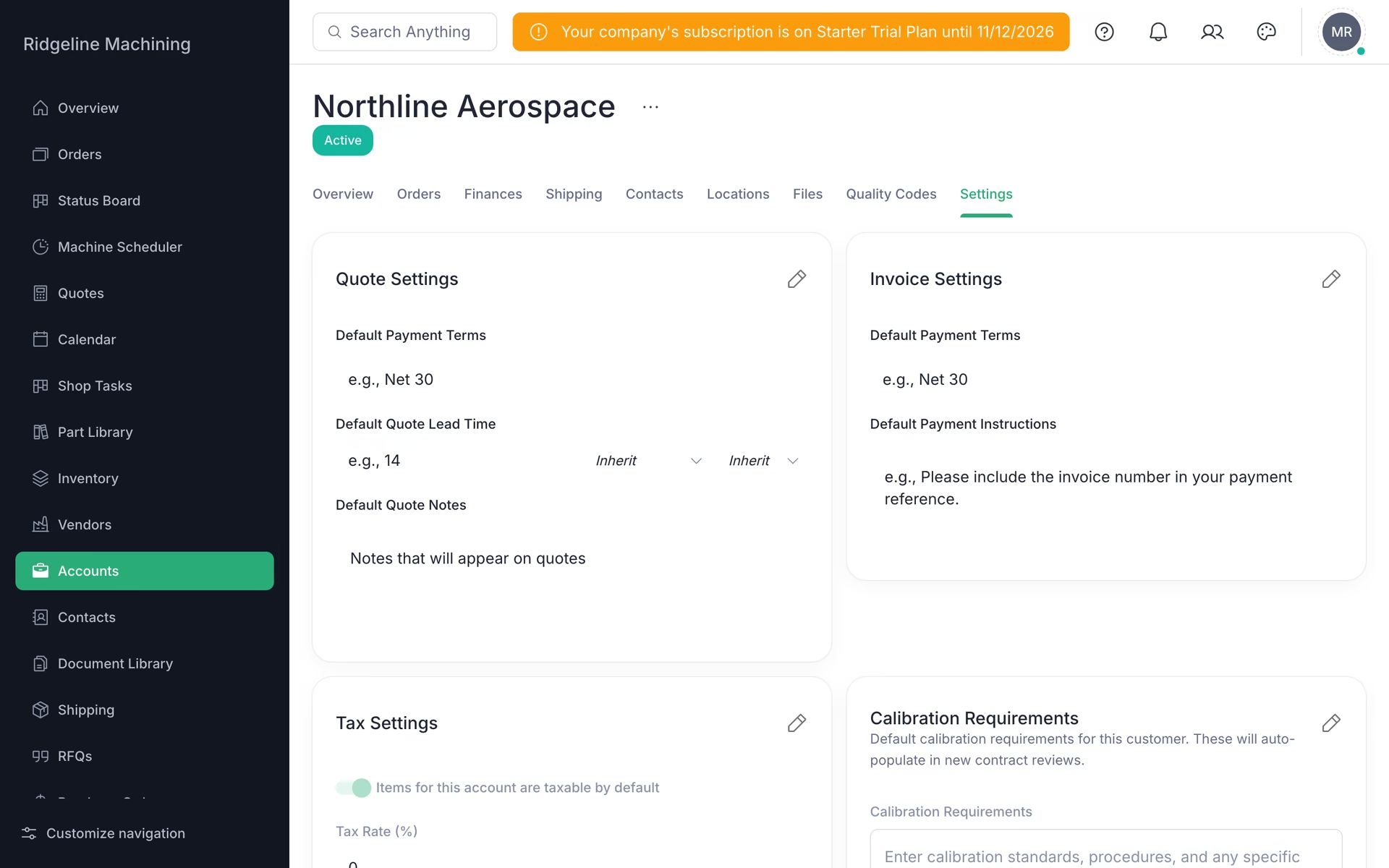
    The Settings tab of the Northline Aerospace account: Quote Settings, Invoice Settings and Tax Settings cards.
Tip

If you use QuickBooks or Xero, import customers instead of typing them.

Note

There is no tax table. Tax is set on each account.

Warning

You cannot create a quote without an account.

What good looks like

  • Your top customers are listed with a contact, a ship-to location and payment terms.

Next: add your vendors

Add the vendors you send work to, with categories and lead times for their operations.

No contracts. Cancel anytime.

Open lesson 5.2

All Rights Reserved.