
Before you start
Note
The Machine Scheduler shows once machine scheduling is turned on for your shop (lesson 3.2). The Status Board is always there.
Steps
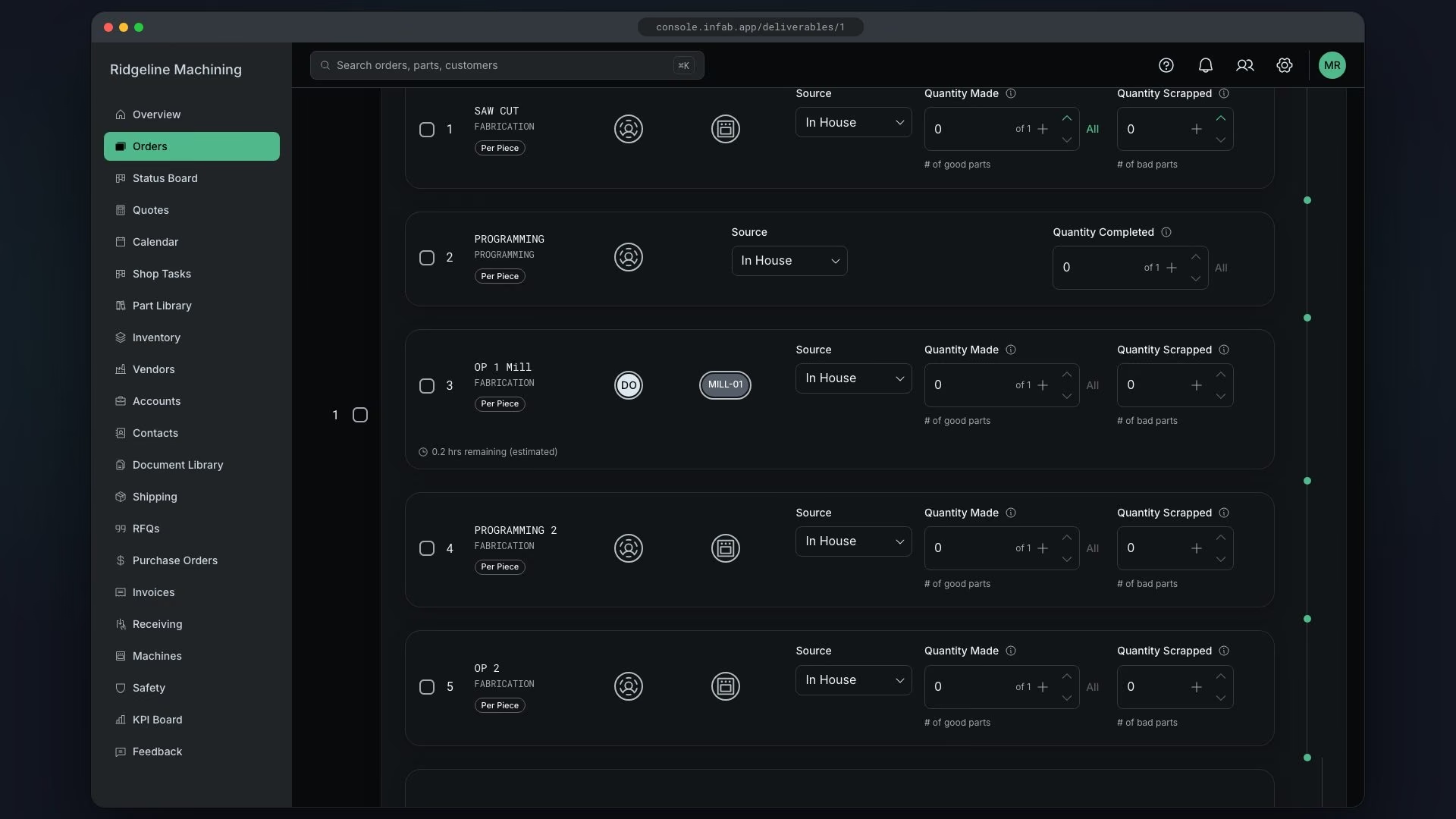
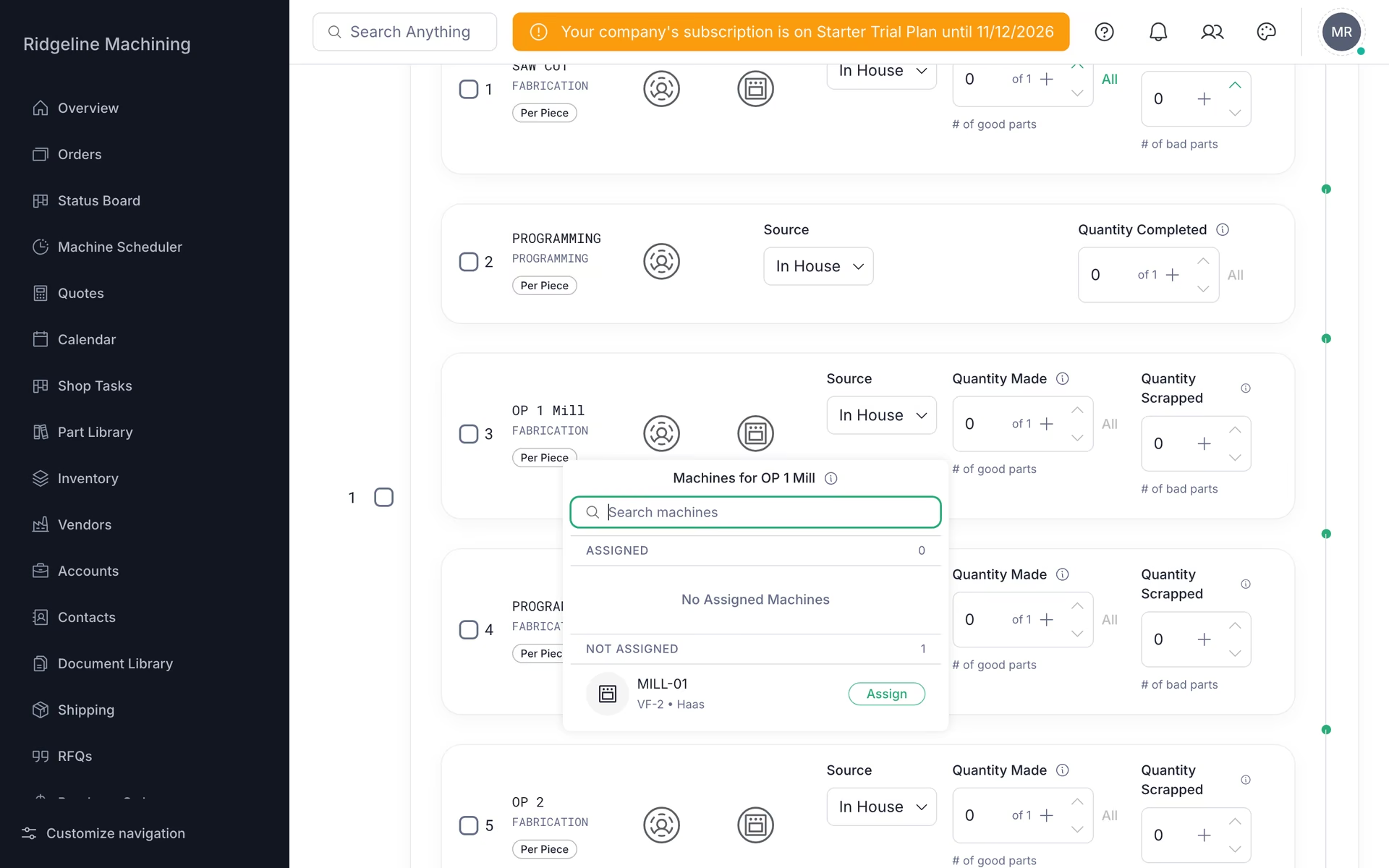
Open the deliverable, expand the item, and on each in-house operation under Operations click the machine icon, then Assign next to the machine
The Machines for popover lists the machines that support the operation type.
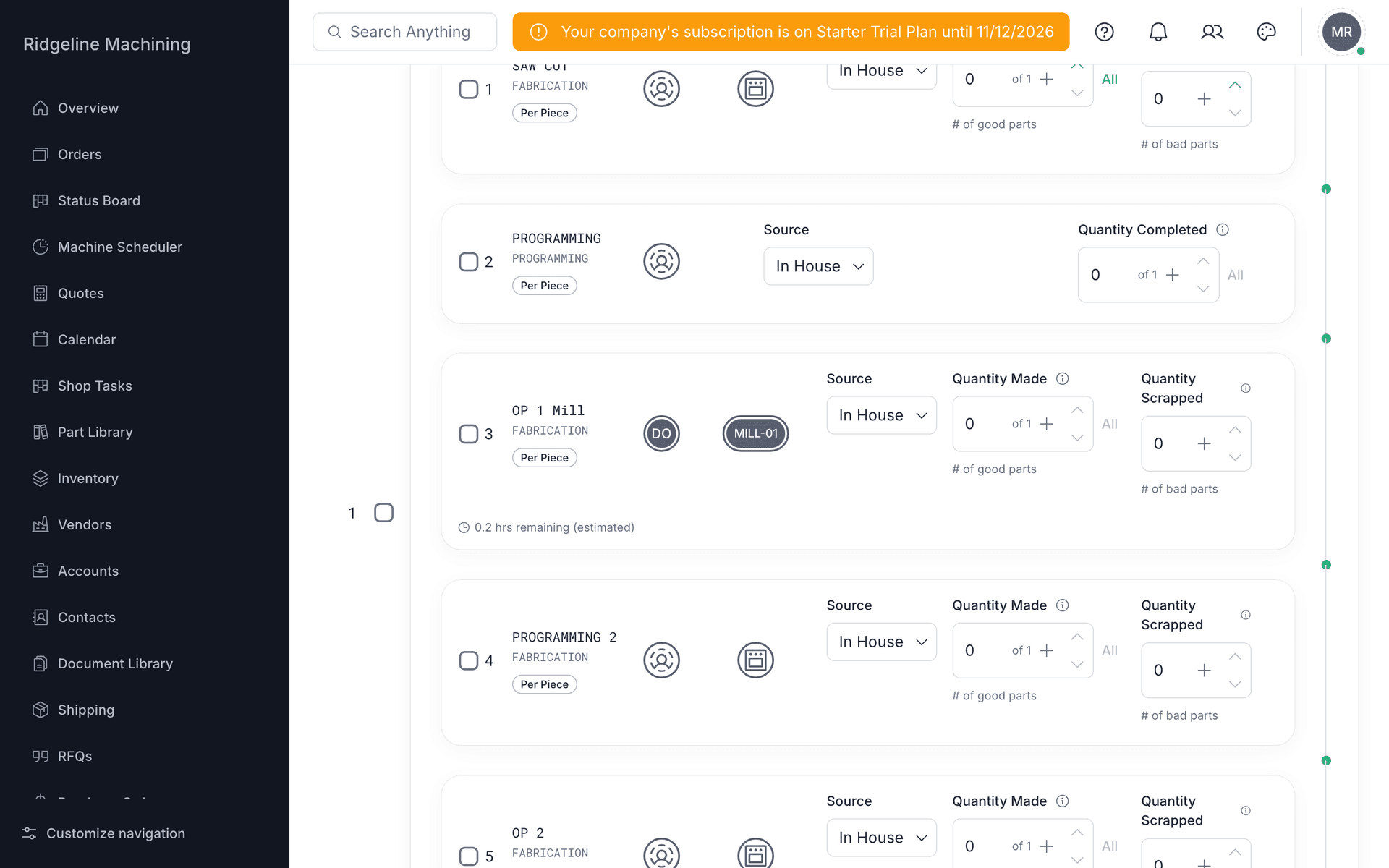
With auto-assign on, the least-loaded operator is added
Without it, click the user icon on the operation and assign users by hand.
 Warning
The work list on the home page only shows work assigned to that user. Unassigned work shows nowhere, and the empty list reads "Work shows up here the moment someone assigns you an operation…".
Place the work on the Machine Scheduler
Watch progress on the Status Board
What good looks like
- Every operation has a machine and a person.
- Every operation is scheduled.