Lesson 3.3

Pair a shop floor kiosk

Pair a tablet as a kiosk so operators at a station can sign in with their PIN.

5 minAdmin > Kiosks6 steps
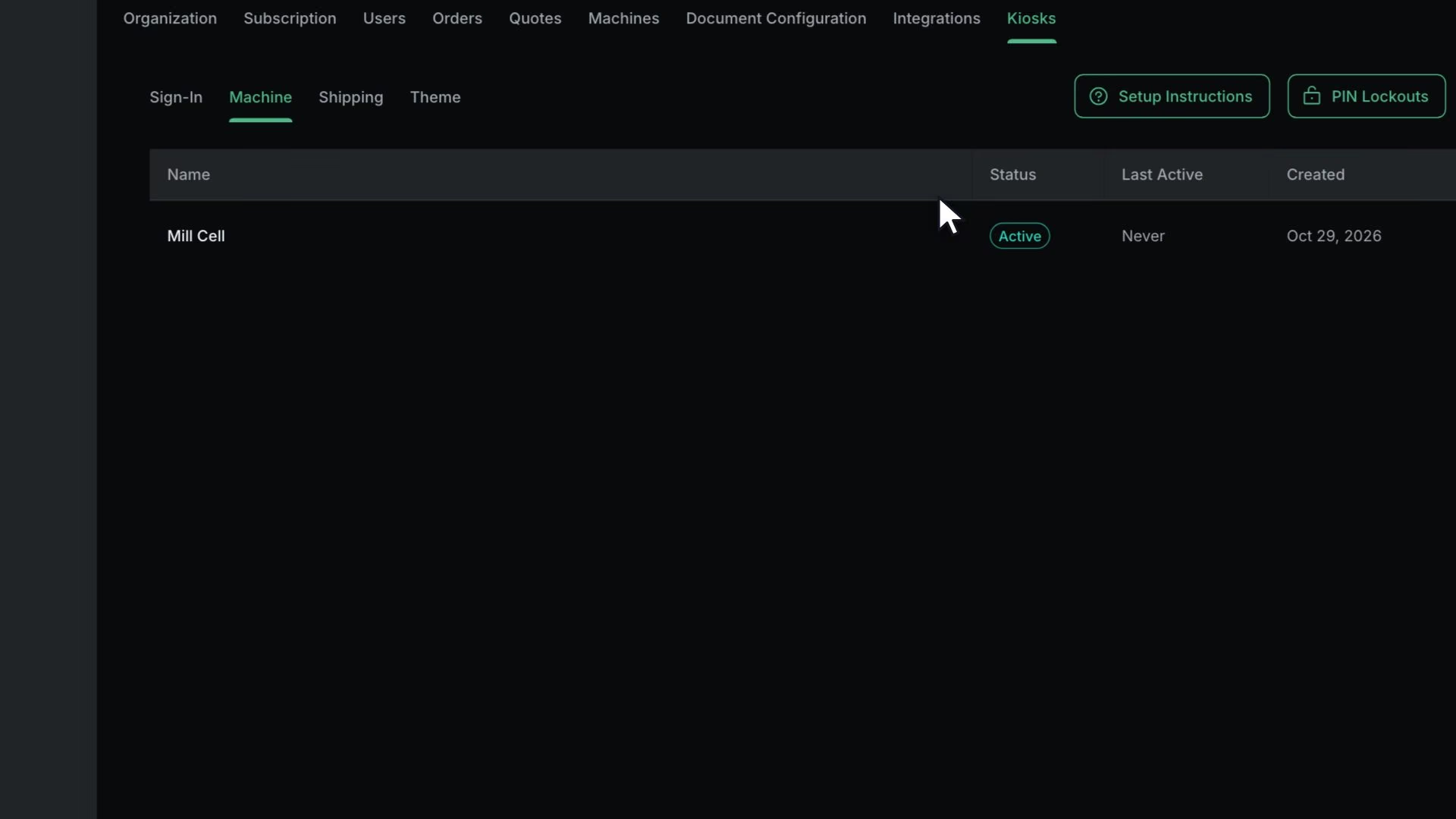
In the Pair New Kiosk dialog, the 8-character code is typed, Kiosk Name "Mill Cell" and Assign Machines MILL-01 are set, and Pair shows the toast "Kiosk paired successfully" as the Mill Cell row appears.

Before you start

3.1Add your machines1.2Sign in and set your PIN

Only users with Is Admin? turned on can open Admin.

Note

The Kiosks tab shows in Admin once the kiosk system is turned on for your shop. If you do not see it, write to [email protected].

Steps

  1. Open kiosk.infab.app on the tablet

    On an iPad, use Add to Home Screen.

  2. Read the 8-character code the kiosk shows

  3. In Admin, Kiosks, click Pair Kiosk

    The Pair New Kiosk dialog opens.

  4. Enter the code, Kiosk Name and Kiosk Type

    Kiosk Type is Sign-In, Machine or Shipping. Pick Machine for a station on the floor.

  5. Under Assign Machines, pick the machines at that station

    Assign Machines shows for the Machine type.
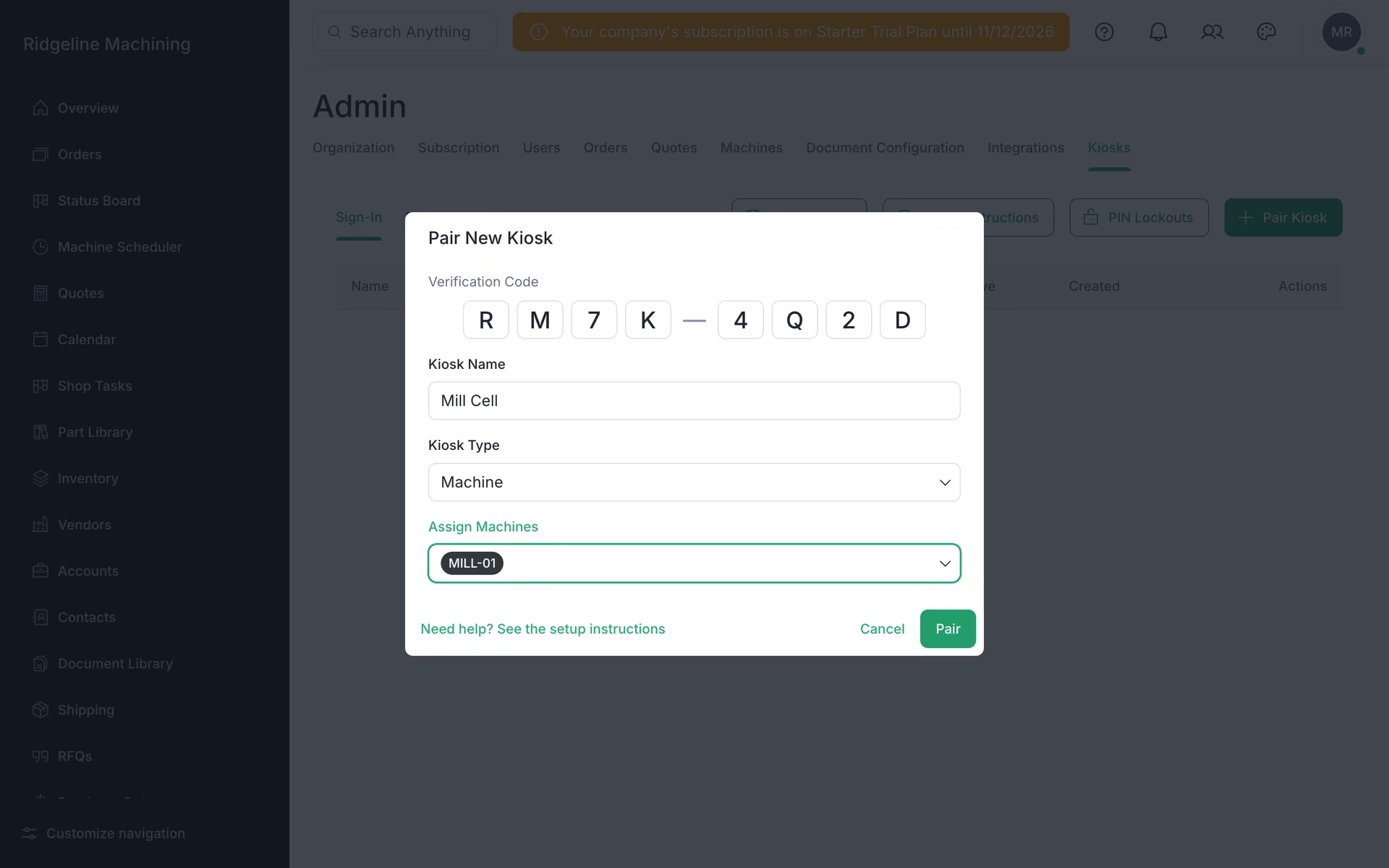
    The Pair New Kiosk dialog with the 8-character code typed in, Kiosk Name Mill Cell, Kiosk Type Machine and MILL-01 under Assign Machines.
  6. Click Pair

    You will see "Kiosk paired successfully".

Warning

Operators sign in to the kiosk with their 4-digit PIN. Anyone without a PIN cannot sign in.

What good looks like

  • The kiosk shows the machines you assigned.
  • An operator can sign in.

Next: set your shop rate and markups

The default material markup, shop rate and margin colors that every new quote starts from.

No contracts. Cancel anytime.

Open lesson 4.1

All Rights Reserved.